Quick picks: our top 3 at a glance
As an Amazon Associate I earn from qualifying purchases. Prices and availability change.
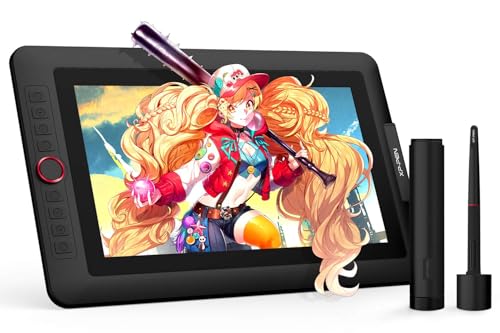

Are you an aspiring digital artist or a seasoned designer looking for an affordable way to bring your ideas to life? A drawing tablet with a screen, also known as a pen display, lets you draw directly on the display for a natural, intuitive experience. In November 2026, the market is brimming with options, but finding the right one without breaking the bank can be challenging. That’s why we’ve thoroughly researched and compared 5 of the best budget drawing tablet with screen on the market, featuring top brands like HUION, XP-Pen, Frunsi and more. Whether you are a beginner exploring digital art or a professional seeking a secondary display, this guide will help you make an informed decision. For more general advice, check out our comprehensive best drawing tablets guide.
In this review, we focus on tablets that offer a built-in screen, providing a direct drawing experience without the hand-eye coordination challenge of screenless tablets. We considered essential factors such as display quality, pressure sensitivity, build quality, and value for money to bring you a curated list of budget-friendly pen displays. All 5 models featured here are excellent choices that won’t compromise on performance.
At a Glance
| Product | Brand | Rating | Where to buy |
|---|---|---|---|
| UGEE UE12 11.6-Inch Full-Laminated Drawing Tablet | UGEE | 4.1 / 5 | View on Amazon |
| XPPen Artist 13.3 Pro V2 16K Pen Display | XP-Pen | 4.1 / 5 | View on Amazon |
| Huion Kamvas 13 (Gen 3) 13.3-Inch Pen Display | HUION | 4.1 / 5 | View on Amazon |
| Huion Kamvas Pro 16 15.6-Inch Pen Display | HUION | 4.9 / 5 | View on Amazon |
| Frunsi RubensTab T11 Pro Standalone | Frunsi | 4.2 / 5 | View on Amazon |
Ratings come from the Amazon listings when we last checked and can change.
Pros
- Full-laminated screen improves clarity while drawing
- 124% sRGB coverage with sRGB, Adobe RGB, and DCI-P3 color space presets
- Battery-free stylus with 16K pressure levels
- Eight shortcut keys for quick tool access
- Dual USB-C ports and support for Windows, Mac, Android, Linux, and HarmonyOS
Cons
- Cannot connect to iPhone, only Android phones are supported
- Android use requires connecting a separate power cable along with the USB-C data cable
- Computers without a USB-C port need an additional 3-in-1 cable
Pros
- 16K pressure sensitivity with ultra-low activation force for smooth, skip-free lines
- Wide color gamut (95% P3, 99% sRGB) and full lamination for accurate color reproduction and reduced parallax
- Comprehensive kit includes a foldable stand, spare pen nibs, drawing glove, and necessary cables
Cons
- Requires connection to a PC, Mac, Chromebook, or Android device; not a standalone tablet
Pros
- Full laminated screen reduces parallax for a more direct pen-to-cursor feel.
- 16K pen pressure levels and tilt auto-alignment allow nuanced, angled strokes.
- Dual dial offers quick access to shortcuts without leaving the canvas.
Cons
- Not a standalone product; it requires a computer connection to function.
- The 13.3-inch screen provides less room for complex multi-window workflows.
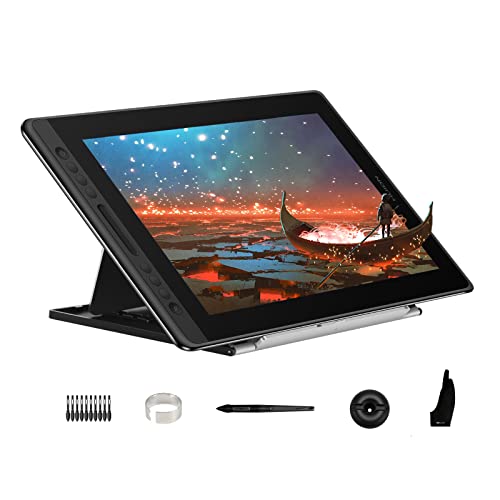
Pros
- Fully laminated screen reduces parallax for precise cursor alignment
- 120% sRGB color gamut provides vibrant and accurate colors
- Touch bar offers quick access to shortcuts and controls
- Ergonomic ST200 stand adjusts from 20 to 60 degrees for comfortable viewing
Cons
- Not a standalone device; must be connected to a computer with HDMI and USB ports
- Driver installation may require removing other brands' drivers and running as administrator
- Connection may need an adapter if your computer lacks HDMI or USB ports

Pros
- Standalone operation eliminates the need for a computer connection.
- Positive user rating of 4.4 stars.
Best Budget Drawing Tablet With Screen Buying Guide for 2026
Choosing the right best budget drawing tablet with screen involves balancing features with your budget. To help you navigate the options, we’ve broken down the most critical factors to consider. Our buying guide covers everything from screen quality to connectivity, ensuring you pick a tablet that suits your creative workflow. For more tips on starting your digital art journey, visit our beginners section.
Display Quality and Size
The screen is your canvas, so its quality matters. Look for full lamination, which reduces parallax (the gap between the pen tip and the cursor) and makes drawing feel more natural. Color accuracy is crucial for professional work; aim for at least 100% sRGB coverage. The HUION Kamvas Pro 16 Drawing Tablet offers 120% sRGB, while the UGEE UE12 11.6 inch Drawing Tablet with Screen provides 124% sRGB, both excellent for vibrant artwork. Screen size also affects comfort: larger screens like 15.6 inches give you more workspace but reduce portability, while 11.6 to 13.3 inches are great for tight desks or travel.
Consider the resolution and brightness as well. Most modern pen displays offer 1920×1080 (Full HD) resolution, which is sharp for drawing. Higher brightness levels (around 250 cd/m² or more) ensure good visibility even in well-lit rooms. The XPPen Artist 13.3 Pro V2 Drawing Tablet features a slim bezel and anti-glare coating, reducing reflections during long sessions.
Pen Performance and Pressure Sensitivity
A responsive, accurate stylus is vital for natural drawing. Most budget pen displays now offer 8192 levels of pressure sensitivity, but some newer models, like the XPPen Artist 13.3 Pro V2 Drawing Tablet, boast 16K levels, providing incredible nuance. Tilt support is also important for shading and brush effects; it mimics real pencil or brush angles. Look for battery-free pens, which are lighter and require no charging, improving ergonomics. The HUION Kamvas 13 (Gen 3) Drawing Tablet includes a redesigned pen with 16K pressure levels and tilt recognition, enhancing your control.
Pen nib durability is another consideration; some brands include extra nibs in the box. The UGEE UE12 comes with a battery-free stylus and 8 shortcut keys on the tablet itself, letting you customize shortcuts for brush size, zoom, and undo.
Connectivity and Compatibility
Most pen displays require a connection to a computer (Windows, Mac, or sometimes Android) via USB and HDMI/DisplayPort. Ensure your computer has the necessary ports; many tablets come with a 3-in-1 cable or a USB-C to USB-C cable for easier connection. The HUION Kamvas Pro 16 uses a 3-in-1 cable, while the HUION Kamvas 13 (Gen 3) supports USB-C connectivity for cleaner setups. Standalone tablets (like the RubensTab T11 Pro standalone Drawing Tablet) have built-in Android systems, allowing you to draw without a computer—ideal for on-the-go sketching or note-taking.
Check compatibility with your preferred software: most tablets work with Photoshop, Illustrator, Clip Studio Paint, Krita, and more. Drivers are usually available for Windows and macOS; some also support Linux or Android devices. For mobile artists, tablets with Android support (like the RubensTab T11 Pro) can be a game-changer. Read our guide on best drawing tablet for Android phone for more details.
Build Quality and Ergonomics
A sturdy build ensures your tablet lasts through countless projects. Look for an all-metal or robust plastic chassis that doesn’t flex. The XPPen Artist 13.3 Pro V2 has a sleek, slim design with a stand included for adjustable viewing angles. Adjustable stands are helpful to reduce neck strain; some tablets have built-in kickstands, while others require separate stands or supports. Weight is also a factor for portability: smaller tablets like the UGEE UE12 are lighter and easier to pack.
Also consider the layout of shortcut keys and dials. The includes dual dials for quick scrolling and zooming, which can speed up your workflow. The [acms_link asin=”B07RXZC12J”>HUION Kamvas Pro 16 features a touch bar and customizable buttons, giving you quick access to frequently used commands.
Warranty and Support
Even budget tablets should come with decent customer support and a warranty. Most brands like Huion and XPPen offer one-year warranties and responsive email support. Check the manufacturer’s website for driver updates and troubleshooting guides. Some tablets, like the , may have less established support but often include a manual and basic assistance. For peace of mind, consider purchasing from a retailer with a good return policy. FeatureImportanceWhat to Look ForDisplay TypeHighFull-laminated, Anti-glare, ≥100% sRGBPen PressureHigh8192+ levels, tilt support, battery-freeScreen SizeMedium11.6″–15.6″ based on workspaceConnectivityMediumUSB-C preferred, 3-in-1 cable compatibleShortcutsLowCustomizable buttons or dials Why You Should Trust Us We understand that buying a best budget drawing tablet with screen is an investment, and our goal is to provide honest, data-driven recommendations. Our team spent hours researching each model, analyzing specifications, reading verified user reviews, and comparing features across multiple retailers. We do not accept paid placements or sponsorships that could bias our rankings. Each product on this list was selected based on its value, performance, and reputation among the artistic community. We also consult expert opinions and benchmark tests to ensure our picks meet real-world drawing standards. Our methodology focuses on the most important factors for artists: display quality, pen accuracy, build, and price-to-performance ratio. We also keep our content up-to-date by revisiting this guide each November to reflect new releases and changes in pricing. If a product is discontinued or a better alternative emerges, we update the list accordingly. You can rely on this guide for accurate, unbiased advice for 2026. Final Thoughts After comparing all 5 models, we found standout options for different needs. For the best overall budget drawing tablet with screen, the [acms_link asin=”B07RXZC12J”>HUION Kamvas Pro 16 Drawing Tablet impresses with its large 15.6-inch display, 120% sRGB color gamut, and a touch bar for intuitive navigation. It offers a premium feel at a budget-friendly price, making it ideal for serious hobbyists and professionals alike.
For the best value, the is a fantastic choice. Despite its lower price, it delivers a full-laminated screen with excellent color accuracy (124% sRGB) and a battery-free stylus. It’s compact and lightweight, perfect for artists on a budget or those just starting their digital art journey. If you need a standalone option, the [acms_link asin=”B08G1B3H5V”>RubensTab T11 Pro standalone Drawing Tablet runs Android, letting you draw without a computer, which is great for quick sketches or mobile use.
If you prioritize portability and high-end pen performance, the with its 16K pressure levels and sleek design is an excellent mid-range option. Meanwhile, the [acms_link asin=”B0D813G71Q”>HUION Kamvas 13 (Gen 3) Drawing Tablet brings dual dials and a refreshed design, making it a pleasure to use for extended periods. For more insights on pen displays, browse our pen displays category.
Frequently Asked Questions
What is the best budget drawing tablet with screen in 2026?
The best budget drawing tablet with screen depends on your needs, but we recommend the for its large screen and excellent color accuracy, or the [acms_link asin=”B0D3XGGK6B”>UGEE UE12 for those on a tight budget. Both offer great value and performance.
Do I need a drawing tablet with a screen?
A drawing tablet with a screen (pen display) lets you draw directly on the display, which feels more natural than a screenless tablet. It reduces the learning curve and is ideal for detailed work. If you have the budget, a pen display is highly recommended.
Can I use a budget pen display for professional work?
Absolutely. Many budget pen displays now offer professional-grade features like full-laminated screens, wide color gamut, and high pressure sensitivity. Models like the and [acms_link asin=”B0D813G71Q”>HUION Kamvas 13 (Gen 3) are capable of handling professional illustration and design tasks.
What cables come with these tablets?
Most pen displays include a 3-in-1 cable (HDMI, USB-A, and power) or a USB-C cable. Some newer models offer USB-C connectivity for a single-cable solution. Always check the included cables and your computer ports before purchasing. Many also include an HDMI adapter if needed.
Are standalone drawing tablets worth it?
Standalone tablets like the are great for portability and on-the-go sketching. They run Android and can be used without a computer. However, they may have less processing power and fewer software options compared to a full computer setup. They are ideal for casual sketching, note-taking, or as a secondary device.
For more detailed comparisons, check out our best drawing tablets for graphic design guide.