Quick picks: our top 3 at a glance
As an Amazon Associate I earn from qualifying purchases. Prices and availability change.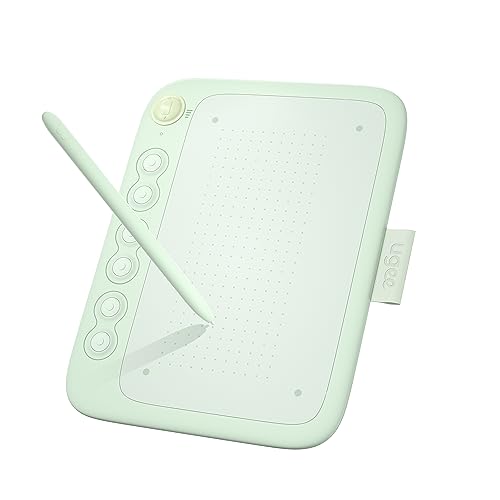


If you own a Mac and love to draw, paint, or edit photos, you already know how powerful your machine can be. But to truly unleash your creativity, you need the right input device. That is why we set out to find the best drawing tablet compatible with mac in November 2026. Whether you are a beginner exploring digital art or a seasoned professional looking for an upgrade, choosing a drawing tablet that works seamlessly with macOS is essential. With so many options from brands like HUION, Wacom, XP-Pen and more, making a decision can feel overwhelming. This guide simplifies the process by comparing 6 leading models based on features, performance, compatibility, and overall value.
We know that Mac users have specific needs: smooth driver installation, reliable Bluetooth connectivity, macOS-compatible software support, and a comfortable drawing surface. Our goal is to help you find a tablet that feels natural and works flawlessly with your favorite creative apps. If you are just starting your search, you may also want to explore our best drawing tablets guide for a broader overview. But if you are specifically seeking a device that pairs perfectly with your Mac, you have come to the right place.
At a Glance
| Product | Brand | Rating | Where to buy |
|---|---|---|---|
| ugee Q6 6.5x4-inch Drawing Tablet | UGEE | 4.7 / 5 | View on Amazon |
| Wacom Intuos Medium Bluetooth Drawing Tablet | Wacom | 4.7 / 5 | View on Amazon |
| XPPen Artist 13.3 Pro V2 16K Pen Display | XP-Pen | 4.1 / 5 | View on Amazon |
| Huion Inspiroy H640P 6x4 Inch Drawing Tablet | HUION | 4.2 / 5 | View on Amazon |
| Huion Inspiroy H1060P 10x6.25in Drawing Tablet | HUION | 4.6 / 5 | View on Amazon |
| XPPen Deco MW 8x5-in Wireless Drawing Tablet | XP-Pen | 4.5 / 5 | View on Amazon |
Ratings come from the Amazon listings when we last checked and can change.
Pros
- Battery-free stylus eliminates the need for charging or pairing.
- 8192 levels of pressure sensitivity enable nuanced strokes.
- Six shortcut keys offer quick access to common functions.
- Built-in Type-C cable provides a simple and reliable connection.
- Compact 6.5x4-inch design is highly portable.
Cons
- Small active area may be restrictive for larger gestures.
- Wired connection via built-in cable limits placement options.
- Limited to six shortcut keys, which may not suit complex workflows.
Pros
- Wireless Bluetooth connectivity for cable-free drawing
- Pressure-sensitive pen for natural brush strokes
- Works with multiple platforms including Chromebook and Android
- Includes software and online tutorials for beginners
Pros
- 16,384 levels of pressure sensitivity for exceptional stroke precision
- Fully laminated display with minimal parallax and anti-glare glass
- 99% sRGB and 95% P3 color gamut for accurate and vibrant colors
- Single USB-C cable connection reduces desk clutter
- Wide OS support and left-handed 180° rotation
Cons
- Requires a computer or laptop to function (not a standalone device)
- 13.3-inch screen may be small for artists who prefer larger drawing areas

Pros
- Multi-OS compatibility: works with Windows, Mac, Linux, and select Android devices.
- 8192 levels of pen pressure for precise and responsive input.
- Compact and slim design enhances portability for on-the-go use.
- Battery-free pen is suitable for extended use and specific applications like OSU gaming.
- Supports left-handed users with a simple driver adjustment.
Cons
- Does not support iOS devices.
- Wired USB connection only; no wireless functionality.
- Android compatibility limited to devices with OS 6.0 or later.
Pros
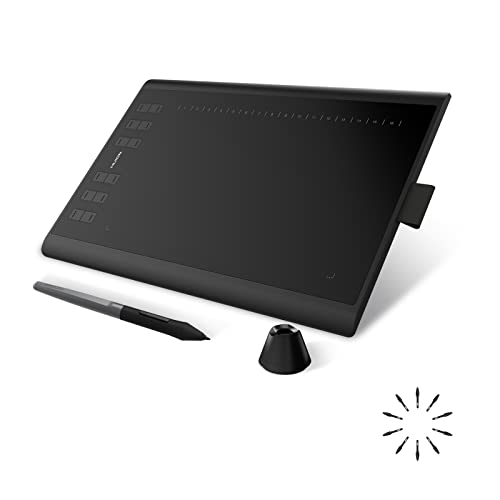
- 28 customizable press keys for efficient workflow
- Slim design with integrated pen loop for portability
- Broad OS compatibility including Linux (Ubuntu with Xorg)
- Battery-free pen eliminates charging needs
- Includes USB-C adapter and extra pen nibs
Cons
- Not compatible with iOS devices (iPhone/iPad)
- Android use requires OTG support and Android 6.0 or later
- Linux support limited to Xorg display server (Wayland not supported)

Pros
- Bluetooth 5.0 wireless with a built-in battery rated for up to 10 hours of continuous use
- Battery-free X3 stylus with 8192 pressure levels and 60-degree tilt support
- Eight programmable shortcut keys and a compact 8x5 inch work area with 0/90/180/270 degree rotation
Cons
- Not a display tablet; requires a separate computer or Android device for drawing
- iOS/iPadOS support is limited to ibisPaint in the listing rather than general iPad app compatibility
Best Drawing Tablet Compatible With Mac Buying Guide for 2026
Choosing the right best drawing tablet compatible with mac is not just about picking a popular brand. It involves understanding how different features affect your workflow, especially on macOS. Here are the key factors you should consider before making a purchase.
Drawing Area Size and Portability
The active drawing area determines how much room you have to sketch. Larger surfaces, like the 10 x 6.25 inch area on the HUION Inspiroy H1060P, give you a more expressive stroke and reduce wrist strain because you can use your whole arm. Smaller tablets, such as the 6 x 4 inch HUION H640P or the UGEE Q6, are extremely portable and fit easily into a backpack. If you travel often with your Mac and want to sketch on the go, a compact model is often the best choice.
However, portability does not have to mean sacrificing usability. Many compact tablets offer the same pressure sensitivity and shortcut keys as larger ones. Consider your workspace. A large tablet like the XP-PEN Artist 13.3 Pro V2, which is actually a pen display with its own screen, takes up significant desk real estate but offers a more direct drawing experience. Think about whether you prefer a pen tablet where your hand stays on the desk while you look at your Mac monitor, or a pen display that lets you draw directly on the screen.
Pressure Sensitivity and Pen Technology
Pressure sensitivity is one of the most critical specs for a drawing tablet. It determines how accurately the tablet detects the varying force you apply with the stylus, which translates into thicker or thinner lines, opacity changes, and texture in digital painting. Most modern tablets offer at least 4096 levels, but the models in this roundup include even higher levels. The XP-PEN Artist 13.3 Pro V2, for instance, boasts an incredible 16384 levels of pressure sensitivity, giving you remarkable control.
Battery-free pens are another important feature. Many tablets, including those from Huion, Wacom, and XPPen, come with battery-free styli that never need charging. This means the pen is lighter, more balanced, and always ready to use. The Wacom Intuos Medium also includes a battery-free pen with its famous pen technology. When evaluating a best drawing tablet compatible with mac, check the pen technology and whether replacement nibs are easy to find. A comfortable pen makes a huge difference during long drawing sessions.
macOS Compatibility and Driver Support
Not all drawing tablets are created equal when it comes to Mac compatibility. Some require specific drivers that may not support the latest macOS version, while others are plug-and-play. The best drawing tablet compatible with mac for Mac should offer reliable drivers and regular updates from the manufacturer. Brands like Wacom, Huion, and XPPen have excellent driver support for macOS, and their tablets are generally recognized by popular apps like Photoshop, Illustrator, Clip Studio Paint, and Procreate (with workarounds for Mac).
Before buying, check the manufacturer’s website for the latest macOS driver downloads and user reviews. The HUION Inspiroy H640P specifically mentions compatibility with MacOS 10.12 or later, which is great for a budget tablet. Bluetooth connectivity is another consideration. Tablets like the Wacom Intuos Medium and the XPPen Deco MW allow wireless drawing, which reduces cable clutter and gives you more flexibility. Just remember that you may need to pair the tablet in your Mac’s Bluetooth settings and install the appropriate driver first.
Shortcut Keys and Customization
Customizable shortcut keys can dramatically speed up your workflow. By assigning frequently used actions like undo, zoom, brush size, or color picker to physical buttons, you can keep your eyes on your artwork instead of constantly reaching for your keyboard. The HUION Inspiroy H1060P offers a generous set of customizable press keys, while the UGEE Q6 includes 6 hot keys that can be programmed using its software. The XPPen Deco MW features 8 shortcut keys, and the Wacom Intuos Medium includes four customizable ExpressKeys.
When comparing models, think about which keys are most important to you. Do you need a scroll wheel or a dial? The XP-PEN Artist 13.3 Pro V2 includes a red dial that lets you zoom, scroll, and adjust brush size with a simple twist. This kind of control can be a game-changer for digital artists. Look for tablets that allow you to remap all buttons easily through their driver software. The more flexible the customization, the more the tablet can adapt to your personal drawing style.
Display Type: Pen Tablets vs. Pen Displays
One of the biggest decisions is whether to buy a pen tablet (also called a graphics tablet) or a pen display (a tablet with a screen). Pen tablets like the Wacom Intuos, HUION H1060P, and XPPen Deco MW are typically more affordable and take up less space. You draw on the tablet surface while looking at your Mac monitor. This requires some hand-eye coordination, but many artists find it comfortable and reliable.
Pen displays, like the XP-PEN Artist 13.3 Pro V2, combine the drawing surface with a high-resolution screen. You see your artwork directly under your pen, which feels more natural and helps with precise detailing. However, these are generally more expensive and require a strong connection (usually USB-C) to your Mac. If you are a beginner on a budget, a pen tablet is a great starting point. If you are ready to invest more for an immersive experience, a pen display might be the right choice. For more insights, check our best pen displays for beginners guide.
Build Quality and Brand Reputation
Buying a drawing tablet is an investment, so you want a device that will last. Brands like Wacom have a long-standing reputation for durability and excellent driver support, while Huion and XPPen offer competitive features at more accessible prices. Look for tablets with solid construction, a comfortable surface texture, and reliable cables. The UGEE Q6 includes a built-in Type-C cable, which is convenient and reduces the number of loose accessories.
Read user reviews about driver stability on Mac. Some tablets may work perfectly out of the box, while others might need a firmware update or troubleshooting. It is also wise to consider the included warranty and customer support. Most major brands offer at least a one-year warranty. When in doubt, choose a brand with a proven track record and an active community of users who can offer advice.
| Model | Type | Pressure Levels | Drawing Area | Key Feature |
|---|---|---|---|---|
| UGEE Q6 | Pen tablet | 8192 | 6.5 x 4 in | Built-in Type-C cable |
| Wacom Intuos Medium | Pen tablet | 4096 | 8.5 x 5.3 in | Bluetooth wireless |
| XP-PEN Artist 13.3 Pro V2 | Pen display | 16384 | 11.6 x 6.5 in | Red dial, laminated screen |
| HUION Inspiroy H1060P | Pen tablet | 8192 | 10 x 6.25 in | 12+16 hot keys |
| HUION Inspiroy H640P | Pen tablet | 8192 | 6 x 4 in | Compact and portable |
| XPPen Deco MW | Pen tablet | 8192 | 8 x 5 in | Bluetooth and 8 shortcuts |
This comparison gives you a quick overview of the main differences. Use it as a starting point, then dive into the details that matter most for your creative workflow.
Why You Should Trust Us
We understand that selecting the best drawing tablet compatible with mac is a personal decision. Our team spends hours researching the latest models, analyzing user feedback, and comparing specifications across different brands. We do not simply list products; we evaluate each tablet’s compatibility with macOS, build quality, pressure sensitivity, driver reliability, and extra features. This data-driven approach ensures our recommendations are based on objective facts rather than marketing claims.
We also monitor user reviews and community discussions to understand how these tablets perform in real-world conditions. While we may not physically test every device, we rely on verified purchaser feedback and detailed technical documentation to highlight genuine strengths and potential weaknesses. Our methodology is transparent, and we aim to provide balanced information so you can make an informed choice. If you want to explore more options, our digital painting resources offer additional guidance.
Final Thoughts
After carefully reviewing 6 models, we believe there is a perfect best drawing tablet compatible with mac for every type of Mac user. For those seeking the best overall experience with a screen, the XP-PEN Artist 13.3 Pro V2 stands out thanks to its 16384 levels of pressure sensitivity, fully laminated display, and handy red dial. It transforms your Mac into a professional drawing studio and is ideal for detailed digital painting and photo editing.
For the best value, the HUION Inspiroy H640P is an excellent entry-level option. It offers 8192 levels of pressure sensitivity, a compact form factor, and reliable macOS compatibility at a budget-friendly price. Meanwhile, the Wacom Intuos Medium is a fantastic wireless choice for those who prioritize brand reputation and seamless Bluetooth connectivity. It comes with bundled software and is perfect for hobbyists and professionals who want a reliable, long-lasting tablet.
If you are specifically looking for a portable companion for your Mac, the UGEE Q6 and the XPPen Deco MW are both easy to carry and offer excellent performance for their size. Whatever you choose, make sure the tablet matches your skill level, workspace, and artistic goals. For more curated selections, explore our best drawing tablets for tattoo artists or best tablets for kids guides. Happy drawing!
Frequently Asked Questions
What is the best drawing tablet compatible with mac for Mac in 2026?
The best drawing tablet compatible with mac depends on your budget and needs. In 2026, the XP-PEN Artist 13.3 Pro V2 is an excellent choice for artists who want a pen display with stunning color accuracy. If you prefer a more affordable pen tablet, the HUION Inspiroy H640P or the Wacom Intuos Medium are also top picks among Mac users.
Are drawing tablets compatible with MacBook Pro and MacBook Air?
Yes, most drawing tablets are compatible with MacBook Pro, MacBook Air, iMac, and Mac mini. You just need to install the appropriate driver for your macOS version. Brands like Wacom, Huion, and XPPen provide downloadable drivers that support Apple silicon and Intel-based Macs. Bluetooth tablets like the Wacom Intuos and XPPen Deco MW connect wirelessly, making them perfect for MacBook users.
Do I need a drawing tablet with a screen for Mac?
Not necessarily. A pen tablet without a screen is often enough, especially for beginners. It takes some practice to coordinate your hand and eye, but many professionals use pen tablets daily. A pen display like the XP-PEN Artist 13.3 Pro V2 offers a more intuitive drawing experience because you see your artwork directly under the pen. Decide based on your budget and how naturally you want to draw.
Can I use a drawing tablet with macOS apps like Procreate or Photoshop?
Yes, most of the tablets we reviewed work with popular macOS apps such as Adobe Photoshop, Illustrator, Clip Studio Paint, Krita, and even Procreate through workarounds like Sidecar or third-party extensions. Check the manufacturer’s compatibility list to ensure your favorite app is supported. Huion and XPPen tablets are known for broad software compatibility.
How do I set up a drawing tablet with my Mac?
Setting up a best drawing tablet compatible with mac is usually straightforward. Start by downloading the latest driver from the manufacturer’s website and installing it on your Mac. Then connect the tablet using USB or Bluetooth. In macOS System Settings, you may need to grant accessibility permissions to the driver. After that, open the driver software to configure pen pressure, shortcut keys, and mapping. For more tips, read our beginner-friendly tablet guide.