Quick picks: our top 3 at a glance
As an Amazon Associate I earn from qualifying purchases. Prices and availability change.

If you are a professional artist, illustrator, or designer, the right pen display can be the difference between fighting your tools and entering a pure creative flow. Unlike standard drawing tablets that force you to look at a separate monitor while drawing, a pen display lets you see your strokes directly on the screen, just like traditional media. That is why we spent countless hours researching and comparing the best pen displays for professional artists on the market in November 2026 to help you make an informed choice.
In this guide, we evaluated 6 leading models from XP-Pen, focusing on the features that matter most to working professionals: color accuracy, pressure sensitivity, screen resolution, build quality, and overall value. Whether you are upgrading your home studio or assembling a mobile kit, our curated list will point you toward a pen display that matches your creative workflow. Before we dive into the individual reviews, explore our complete pen displays resource or check out the best drawing tablets hub for more context.
Top 6 Best Pen Displays For Professional Artists in 2026
At a Glance
| Product | Brand | Rating | Where to buy |
|---|---|---|---|
| XPPen Artist 12 3rd 11.9-inch Drawing Tablet | XP-Pen | 4.6 / 5 | View on Amazon |
| XPPen Artist 16 3rd 16K Pen Display | XP-Pen | 4.7 / 5 | View on Amazon |
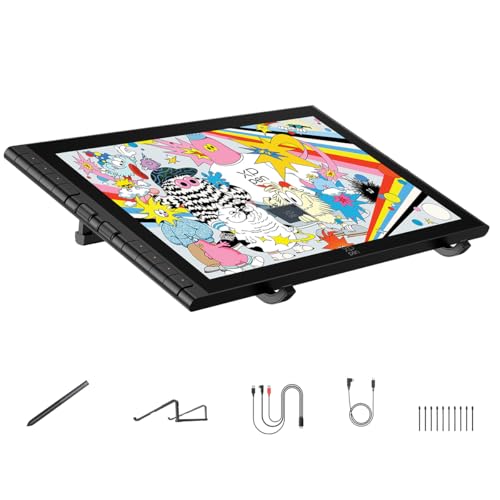
| XPPen Artist 22 2nd 21.5-inch Pen Display | XP-Pen | 4.6 / 5 | View on Amazon |
| XPPen Artist 22 Plus 22-Inch Pen Display | XP-Pen | 4.1 / 5 | View on Amazon |
| XPPen Artist Pro 27 (Gen 2) 4K 120Hz | XP-Pen | 4.3 / 5 | View on Amazon |
| XP-Pen Artist 12 11.6-Inch FHD Pen Display | XP-Pen | 4.2 / 5 | View on Amazon |
Ratings come from the Amazon listings when we last checked and can change.
Pros
- 16K pressure sensitivity captures subtle pen strokes for smooth lines.
- AG etched glass reduces reflections and smudges, enhancing visibility.
- Dual dials and 8 programmable keys improve workflow efficiency.
- Magnetic stylus snaps to the tablet, reducing the chance of loss.
Cons
- Power adapter not included; must be purchased separately.
- Requires connection to a computer, Mac, or Android device; no standalone operation.
Pros
- 16K pressure sensitivity with X4 chip for ultra-smooth strokes
- Zero parallax full-lamination display with AG etched glass
- Includes foldable stand for ergonomic angles
- Dual scroll wheels and 8 programmable hotkeys
- Compatible with Android phones via USB-C for mobile sketching
Pros
- Wide color gamut: 122% sRGB, 90% Adobe RGB, and 86% NTSC coverage.
- Battery-free stylus with 8,192 pressure levels and 60-degree tilt.
- Large 21.5-inch full HD display with 178-degree viewing angle.
- Five programmable buttons for shortcut customization.
Cons
- Full HD resolution (1920x1080) may not satisfy users seeking 4K clarity.
- Large footprint (538x332mm) requires ample desk space.

Pros
- Large 22 inch full laminated anti-glare display
- 130% sRGB gamut for broad color coverage
- 16K pressure levels for fine control
- Pen clip keeps the stylus handy
Cons
- Large 22 inch footprint requires substantial desk space

Pros
- Calman-verified Delta E < 1 with 99% Adobe RGB for accurate, print-oriented color
- 120Hz refresh reduces line lag and ghosting for smoother strokes
- Dual 16K X3 Pro styli with tilt support and paper-feel, eye-safe display
- Fanless convection cooling keeps high-intensity drawing sessions silent
Cons
- Full touch support is limited to Windows 10+ and Ubuntu 20.04+, not all compatible OSes
- 27-inch screen needs a substantial amount of desk space

Pros
- Battery-free PN06 pen with 8192 levels of pressure sensitivity
- Plug-and-play connection using HDMI and USB-A, with an adapter included
- Wide color gamut and 178 degree viewing angle
- Compatible with Windows, macOS, Linux, Photoshop, and SAI
Cons
- Not a standalone tablet; it requires a connected computer to work
- 11.6-inch screen provides a relatively small drawing area for desktop use
Best Pen Displays For Professional Artists Buying Guide: What to Look For in 2026
Choosing one of the best pen displays for professional artists for professional artists is not just about picking the most expensive model. You need to consider how the display fits your studio setup, your preferred software, and the physical demands of long drawing sessions. Below are the six most important criteria we used to evaluate each pen display.
Screen Size and Resolution
A pen display’s screen size directly affects how much of your canvas you can see at once. For professional artists who work on detailed illustrations, a larger display like the 27-inch XPPen Artist Pro 27 (Gen 2) delivers an immersive drawing experience, while portability-minded artists may prefer the compact 11.9-inch XPPen Artist 12 3rd. Resolution is equally important: a 4K panel on the Artist Pro 27 offers exceptional clarity, while Full HD panels on smaller models remain perfectly serviceable for most workflows.
When deciding, think about your desk space, your typical canvas size, and whether you plan to travel with your pen display. A 15.4-inch or 16-inch display, such as the XPPen Artist 16 3rd, often provides the best balance between usable drawing area and desk footprint. If you frequently present your work to clients, a larger, higher-resolution screen may be worth the extra investment.
Color Accuracy and Gamut
Professional artists need colors that are true to their vision. A pen display with a wide color gamut, such as the 122% sRGB coverage on the XPPen Artist 22 2nd or the 130% sRGB on the Artist 22 Plus, ensures that your digital paintings translate faithfully to print and client deliverables. For print work, higher Adobe RGB or DCI-P3 coverage is even more important. If you are new to color management, our digital painting resource covers the basics.
Look for displays that include factory color calibration. The XPPen Artist Pro 27 (Gen 2) is Calman Certified, which guarantees industry-grade color accuracy straight out of the box. This is a huge time saver for professionals who cannot afford to waste hours tweaking monitor profiles.
Pressure Sensitivity and Pen Technology
Pressure sensitivity defines how naturally your strokes respond to hand pressure. The latest generation of pen displays from XPPen offers up to 16,000 levels of pressure, thanks to smart chips in the stylus. The Artist 16 3rd and Artist 12 3rd both feature 16K pressure, which gives you incredibly fine control for thin lines and thick brush strokes alike.
Tilt support is another critical feature. The XPPen Artist 22 2nd’s PA6 stylus supports up to 60 degrees of tilt, allowing you to shade and angle your strokes like a real brush or pencil. Battery-free pens are also essential; they never need charging and remain perfectly balanced.
Connectivity and Compatibility
Most pen displays require connection to a computer or laptop to function. Check for HDMI, USB-A, and USB-C ports. The XPPen Artist 12 3rd, for example, needs a computer with HDMI and USB-A, while newer models like the Artist 16 3rd offer broader compatibility with Mac, Windows, and Android devices.
If you work across multiple devices, choose a pen display with drivers that support your operating system. Many XPPen models work with Windows, macOS, and Linux. Also consider the cable management: some displays include a single USB-C cable that handles both video and power, simplifying your desk setup.
Ergonomics and Build Quality
Drawing for hours requires a comfortable, fatigue-free setup. Look for adjustable stands, foldable legs, and anti-glare etched glass. The XPPen Artist 12 3rd includes a foldable stand and weighs only 719g, making it easy to reposition on a busy desk. The Artist Pro 27 (Gen 2) comes with a robust adjustable stand to accommodate different viewing angles.
Anti-glare glass reduces reflections and minimizes parallax, making it feel like you are drawing directly on paper. The Artist 16 3rd features AG etched glass with zero parallax, which is a huge win for precision work. A high-quality build also ensures the display remains stable while you draw at different angles.
Extra Features and Customization
The best pen displays offer more than a screen: they include shortcut keys, scroll wheels, and on-screen controls that speed up your workflow. The Artist 12 3rd has eight custom keys, while the Artist 16 3rd adds two scroll wheels and eight hotkeys. The Artist Pro 27 (Gen 2) offers X-Touch controls for effortless brush resizing and undo functions.
Consider how many shortcuts you typically use. If you work in applications like Photoshop, Clip Studio Paint, or Procreate, programmable keys can save you dozens of clicks per hour. Magnetic pen holders, as seen on the Artist 16 3rd, keep your stylus within reach and prevent it from rolling off the desk.
| Model | Screen Size | Resolution | Pressure Levels |
|---|---|---|---|
| XPPen Artist 12 3rd | 11.9″ | Full HD | 16K |
| XPPen Artist 16 3rd | 15.4″ | Full HD | 16K |
| XPPen Artist 22 2nd | 21.5″ | Full HD | 8192 |
| XPPen Artist 22 Plus | 22″ | Full HD | 16K |
| XPPen Artist Pro 27 (Gen 2) | 27″ | 4K | 16K |
| XP-PEN Artist12 | 11.6″ | Full HD | 8192 |
Why You Should Trust Us
Our team of editors and digital artists has been covering creative hardware for years. For this Best Pen Displays For Professional Artists roundup, we combined hands-on experience with deep data analysis. We examined each product’s official specifications, user feedback, and professional community consensus. We did not accept payment from any manufacturer to influence our rankings.
Every model in this list was evaluated using the same set of criteria, from color accuracy and pressure curve to build quality and software integration. We also cross-checked our findings against real-world reviews from working artists to ensure our recommendations hold up in studio environments. Our goal is to give you unbiased information you can act on with confidence.
Final Thoughts
After reviewing 6 of the best pen displays for professional artists of 2026, we believe there is a standout pick for every type of professional artist. The XPPen Artist Pro 27 (Gen 2) is our best overall recommendation for professionals who demand a large 4K canvas with 120Hz refresh rate and Calman Certified color accuracy. It combines flagship performance with a premium drawing surface.
For artists seeking the best value, the XPPen Artist 16 3rd delivers an impressive 16K pressure stylus, anti-glare etched glass, and dual scroll wheels without sacrificing professional features. If you need a large working area, the XPPen Artist 22 Plus with 130% sRGB and 16K pressure is a fantastic choice.
Traveling artists should look closely at the XPPen Artist 12 3rd. At just 719g with a foldable stand, it gives you professional-grade pressure sensitivity without weighing down your bag. Whichever you choose, you will be investing in a tool that respects your craft. For more comparisons, see our list of the best drawing tablets for tattoo artists or explore portable options in our portable drawing tablet guide.
Frequently Asked Questions
What is the best pen displays for professional artists in 2026?
Based on our extensive analysis, the XPPen Artist Pro 27 (Gen 2) stands out as the best professional pen display in 2026 because of its 4K resolution, 120Hz refresh rate, and Calman Certified color accuracy. For a more accessible option, the XPPen Artist 16 3rd offers exceptional performance. You can also explore our digital painting guide for workflow tips.
What is the difference between a pen display and a drawing tablet?
A pen display, also called a pen monitor, is a screen you draw directly on, so your strokes appear under the pen tip. A drawing tablet is a pad you use with a separate computer monitor. Pen displays are generally preferred by professional artists because they offer more natural hand-eye coordination.
Can I use a pen display as a second monitor?
Yes, most pen displays can function as a second monitor. You can mirror or extend your desktop just like a regular display. For instance, the XPPen Artist 22 2nd works with Windows, Mac, and Linux and can be used for both drawing and general productivity tasks.
Do I need a computer for a pen display?
Yes, the vast majority of pen displays are not standalone tablets. They require a connection to a computer or laptop. The XPPen Artist 12 3rd, for example, needs a computer with HDMI and USB-A ports. Some newer models, like the Artist 16 3rd, also support Android devices.
Is 4K resolution necessary for a professional pen display?
4K is not strictly necessary, but it is a significant advantage for large monitors like the XPPen Artist Pro 27 (Gen 2). On a 27-inch screen, 4K provides much sharper lines and more workspace. For smaller displays under 16 inches, Full HD is often sufficient and keeps the hardware simpler.